This document describes how to add parts to Builder
When you add components into the Builder, you are actually creating drill-down structure of the Visual Product Tree. First we added all the parts into the Parts List; now we simply select those parts and add it into the Builder in order to create drill-down of the Visual Product Tree.
In order to add components to the Builder, proceed with the following steps:
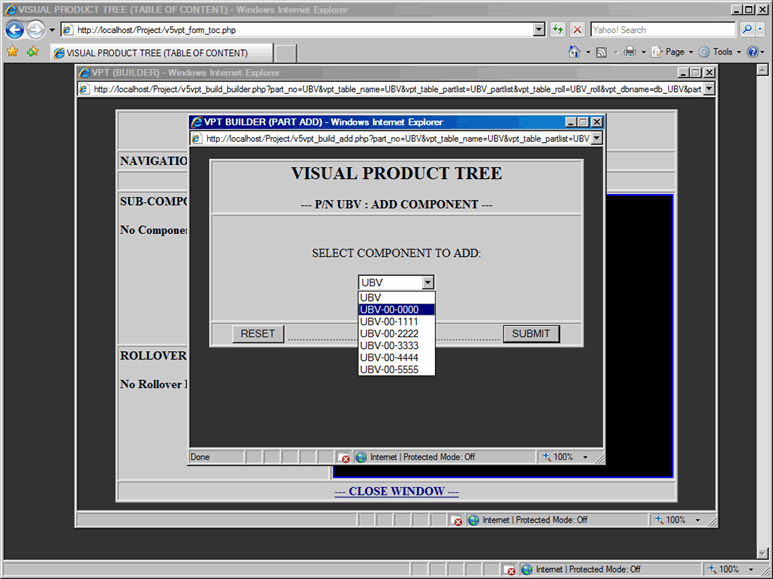
- In the Builder window, from the Sub-Component area, click on Add link; which will display Add Component dialog box, as shown in Figure 1. Note that you are adding sub-components to the top level of assembly (Part No. UBV).
- Select a component UBV-00-0000 from the drop-down list to add it to the builder.
- Submit the form to process your request to add component to the UBV Assembly.
Note: Adding components into the Builder or Deleting components from the Builder does not affect
those components into the Parts List.
Note: If Sub-Component area is empty, then you will not be able to Delete component or
modify any Rollover related information.
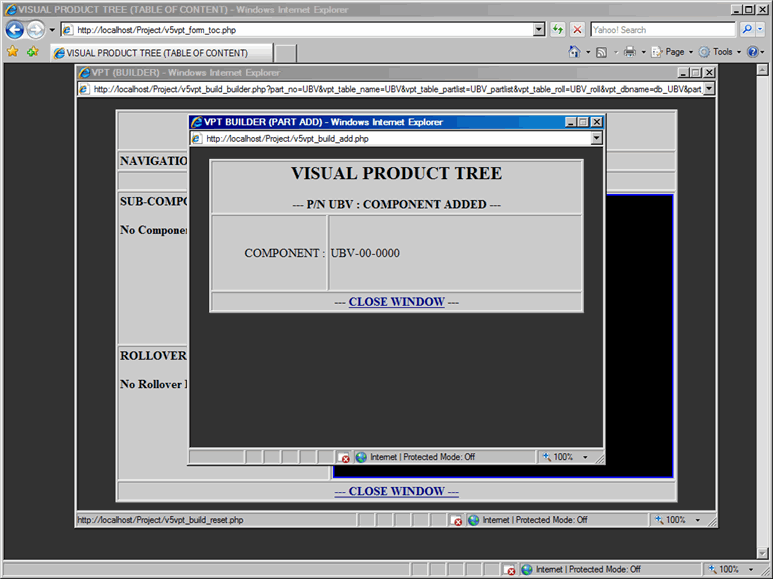
Once the Add Component Form is submitted, confirmation window will be displayed as shown in Figure 2.
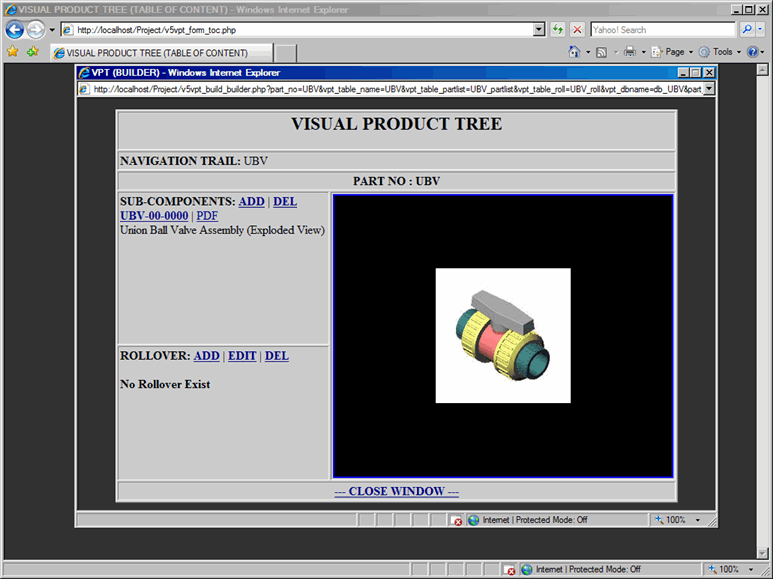
Click on the Close Window link and component (UBV-00-0000) will be added to the top level assembly (UBV) as shown in Figure 3. Also, note this component has PDF documentation attached to it as a link.